Just tell your computer what to do.
ExpellusAI uses AI to see your screen, understand context, and automate any desktop task. No coding required.
Currently in Closed Beta · Windows 10 / 11
From Simple Clicks to Expert-level Tasks
Whether it's everyday automation or complex system configuration, ExpellusAI handles it.
Prompt used
"Set up my workspace: Open Notepad and Calculator. Snap Notepad to the left half of the screen, Calculator to the top-right quarter. Then in Notepad, write today's date and "Daily Workspace Ready"."
Automate everyday tasks like organizing files, managing windows, and controlling any desktop application with simple instructions.
OUR BELIEF
We built ExpellusAI because following AI instructions shouldn't be harder than the task itself. You ask a chatbot how to change a setting, and it gives you a guide. But the menu moved. The button got renamed. The steps don't match your screen.
We thought: what if AI could just do it for you instead? That's what we're building. An AI that sees your screen, understands the context, and acts. Your data stays on your machine. Your privacy stays intact.
Full Control, Zero Friction
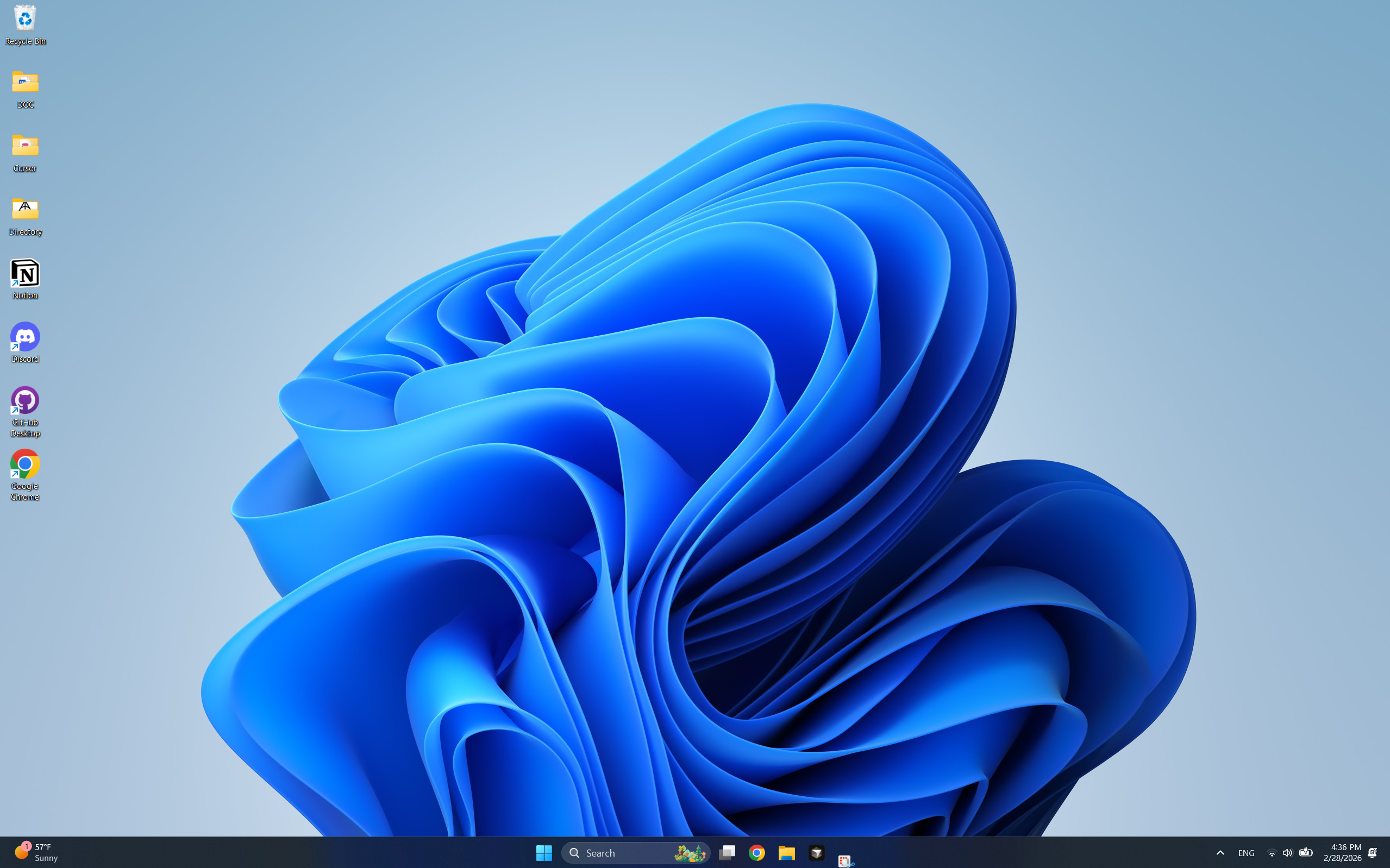
Sees Your Screen
AI reads every button, field, and menu in real time so it knows exactly where to click.
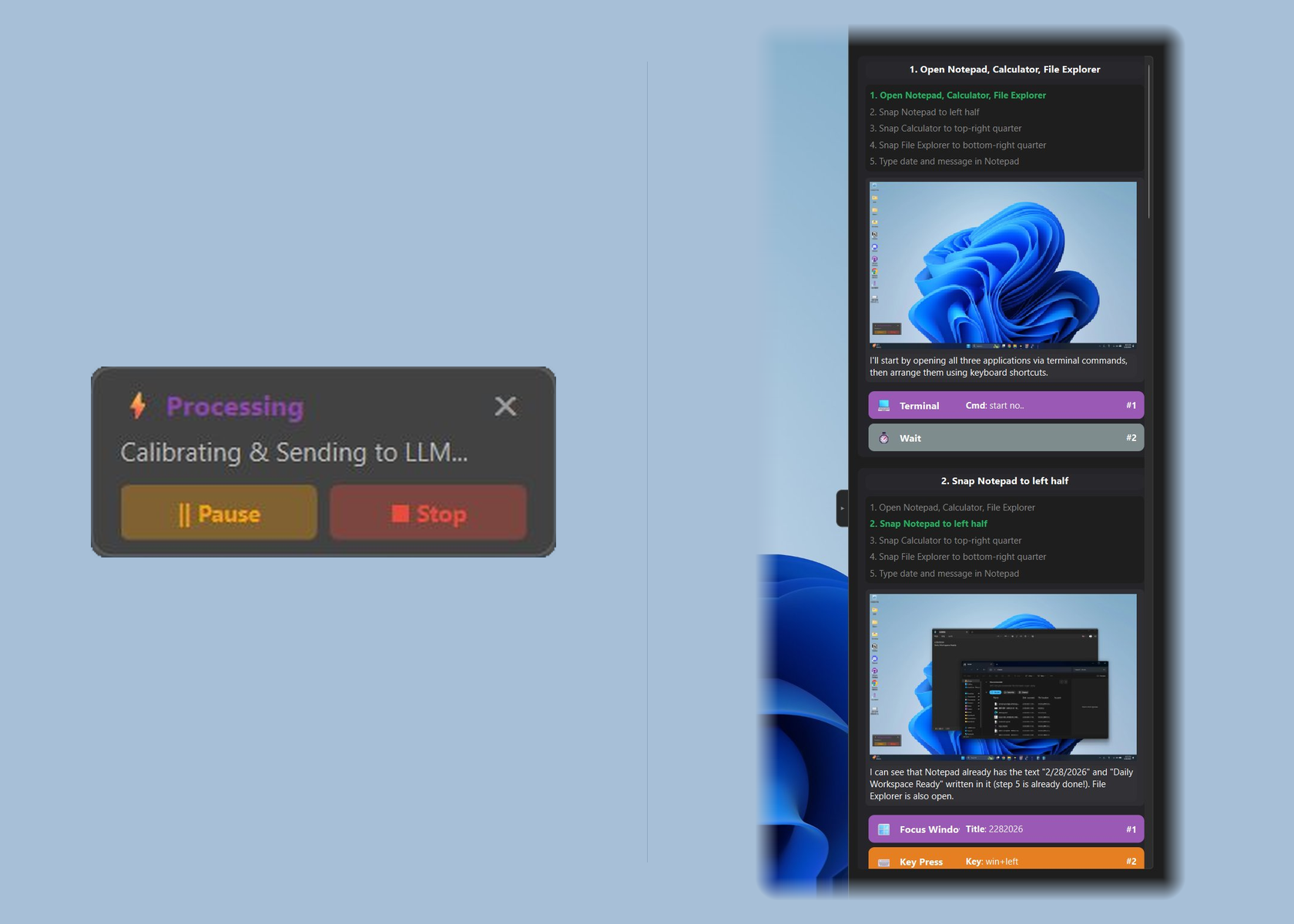
You Stay in Control
Pause anytime to review or redirect. You decide when to proceed and when to step in.
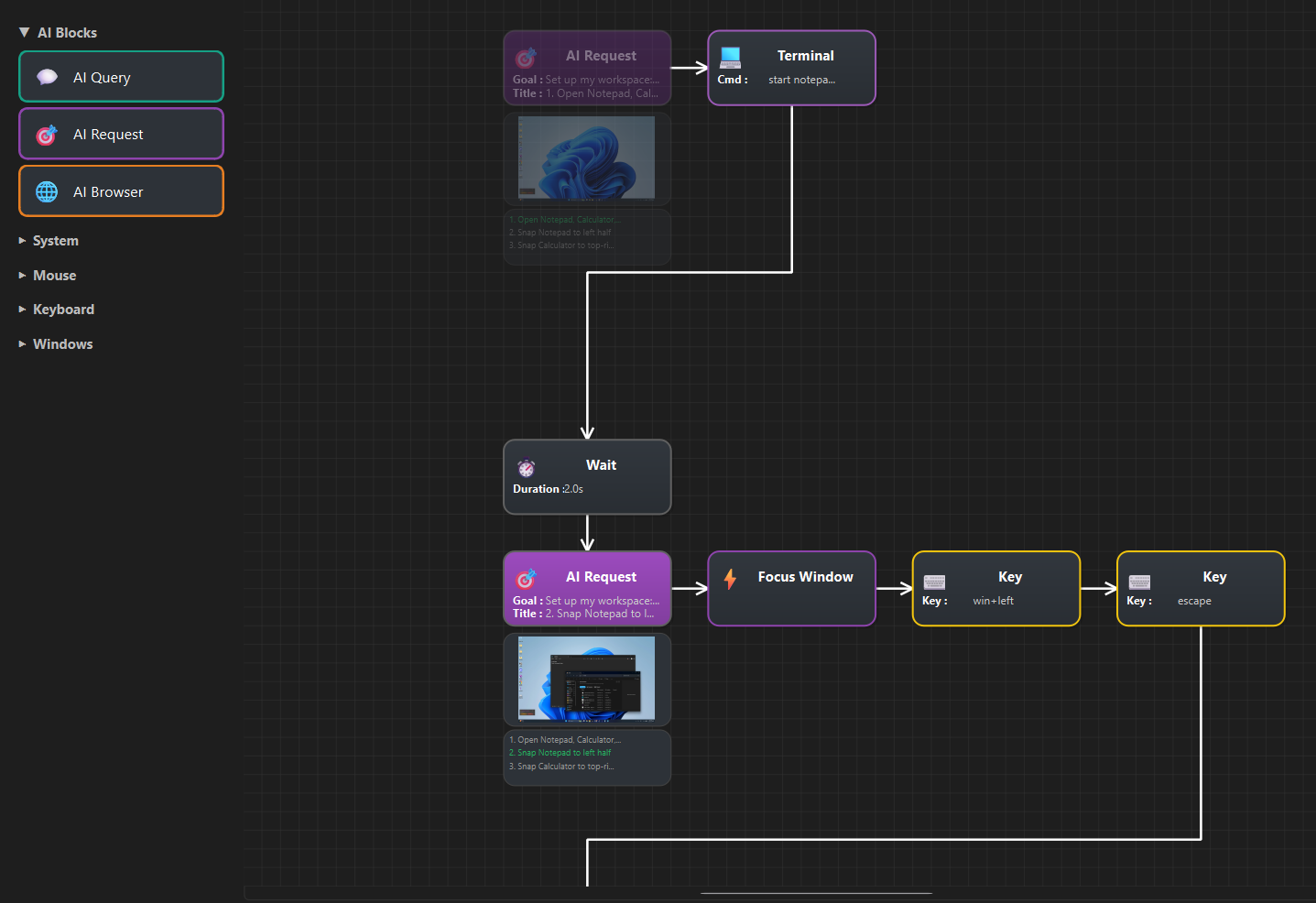
See Every Step
A visual canvas shows each action as it happens. No black boxes, no guessing.
Three steps. Any task.
Step 1
Describe
Tell the AI what you want in plain language. No scripts, no macros, no learning curve.
Step 2
Understand
AI captures and analyzes your screen in real-time, identifying every interactive element.
Step 3
Execute
Watch as AI performs the actions automatically. Review the visual flow, pause to adjust, or let it complete.